




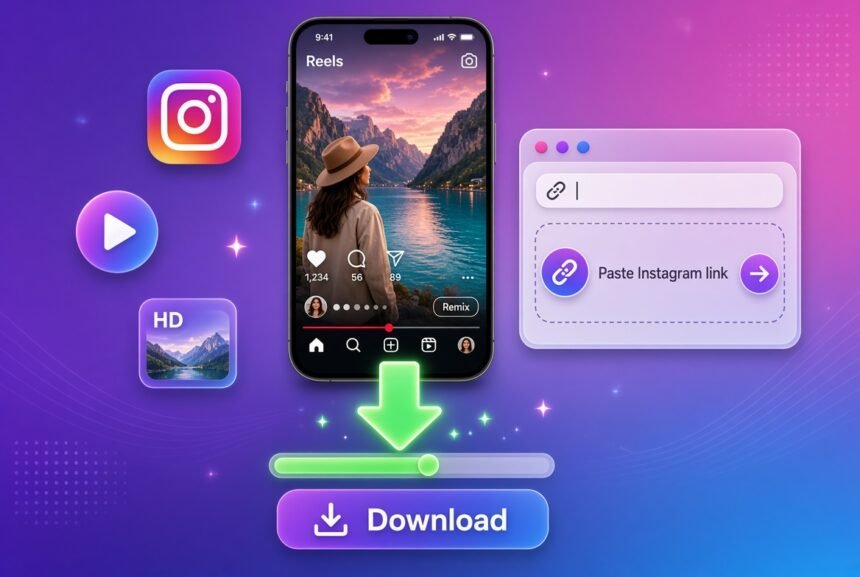
Instagram is packed with great videos, Reels, and clips you might want to keep for later. Maybe you want to watch something offline, save a tutorial, or hold onto a funny moment. The problem is that Instagram does not make downloading straightforward for most content.
This guide walks you through practical ways to save Download Instagram videos without installing extra apps and, in many cases, without watermarks. We will cover built-in options, simple browser methods, screen recording, and important safety notes. Everything is explained in plain language so anyone can follow along.
Why People Want to Download Instagram Videos
People save videos for many ordinary reasons:
- Watching offline when the internet is slow or unavailable
- Keeping useful tips, recipes, or workouts
- Backing up their own posts
- Sharing with friends outside the app (with permission)
- Creating personal collections or mood boards
Whatever your reason, it helps to know the rules first.
Important Legal and Safety Notes
Instagram content is protected by copyright. The person who created the video generally owns the rights to it. Instagram’s Terms of Use also limit how people can copy or scrape content from the platform.
Here is the practical reality:
- Downloading your own videos is fine.
- Saving other people’s public posts for personal, offline viewing is common and usually not enforced for one-off use.
- Redistributing, re-uploading, or using someone else’s video commercially without permission can violate copyright law and Instagram’s rules.
- Tools that ask for your Instagram password or full account access are risky. Stick to methods that only need a public link.
Always respect creators. If you plan to use the video beyond private viewing, ask for permission first. For the official rules on intellectual property, check Instagram’s Help Center and Meta’s copyright information pages.
Never install random apps from outside the official app stores, and avoid any site that demands your login details.
Method 1: Use Instagram’s Built-In Options (Safest Starting Point)
Instagram itself offers a few ways to keep content without third-party tools.
Save posts and Reels inside the app
Tap the bookmark icon under any post or Reel. It goes into your private Saved collection. You can organize these into folders. This does not download a file to your phone, but it keeps the video easy to find later inside Instagram.
Download your own videos
If the video is yours:
- Open the post or Reel.
- Tap the three-dot menu.
- Look for “Download” or “Save to camera roll.”
- The file saves to your phone’s gallery, usually without an extra watermark in many cases (though Instagram sometimes adds one for Reels).
Download your full account data
For a complete backup of everything you have posted:
- Go to Settings → Accounts Center (or Privacy and security on some versions).
- Select Download Your Information or similar.
- Choose Instagram, pick the data types and date range, and request the archive.
- Meta emails you a link when it is ready (this can take hours or a couple of days).
These official options are the cleanest and fully compliant with Instagram’s rules.
Method 2: Online Instagram Video Downloaders (No App Required)
Many people use free websites that let you paste a public Instagram link and download the video directly in your browser. These tools work on phones and computers and usually do not require an account.
How it generally works:
- Open the Instagram app or website and find the video or Reel.
- Tap the share icon (paper airplane) and choose “Copy Link.”
- Open a browser and go to a downloader site.
- Paste the link into the box and start the download.
- Choose the quality if options appear, then save the MP4 file.
Popular tools that users commonly try include SnapInsta, FastDL, and similar link-based sites. Results can vary over time because Instagram changes how its media is served, and sites appear or disappear. Look for tools that:
- Do not ask for your Instagram login
- Deliver the original quality when possible
- Avoid adding their own watermark
Pros
- Works without installing anything
- Often watermark-free (they pull the original file rather than using Instagram’s download button)
- Fast for public posts and Reels
Cons and risks
- Some sites show lots of ads
- Quality or reliability can change
- Private accounts cannot be accessed this way
- Using them goes against Instagram’s terms regarding automated downloading
Treat these as convenience tools for occasional personal use. Clear your browser cache afterward if you prefer, and never enter personal login information.
Method 3: Screen Recording (Works Everywhere, No Extra Tools)
Screen recording is built into almost every modern phone and computer. It captures exactly what you see and hear, so the result has no extra watermark from a downloader.
iPhone
- Add Screen Recording to Control Center if it is not already there (Settings → Control Center).
- Open the Instagram video full screen.
- Swipe down to open Control Center, tap the record button, and wait for the countdown.
- Play the video.
- Stop recording when finished. The video saves to Photos.
Android
- Swipe down twice from the top to open Quick Settings.
- Tap Screen Recorder (or Screen Record). Enable internal audio if available.
- Start recording, open the Instagram video, and play it.
- Stop when done. The file goes to your gallery or Movies folder.
Computer
Use the built-in tools (Xbox Game Bar on Windows, Screenshot toolbar or QuickTime on Mac) or any free screen recorder while playing the video in a browser.
Screen recording is reliable, requires no third-party sites, and works for Stories, Reels, live videos, and private content you can view. The main drawback is that the quality matches what plays on your screen, and longer videos take more storage.
Method 4: Extra Tips for Better Results
- For the Highest Quality, use a strong internet connection and download soon after the post appears.
- Public posts and Reels are the easiest. Private accounts stay private—no legitimate public tool can reach them.
- Stories disappear after 24 hours, so act quickly if you want to keep one (screen recording or a timely link download while it is live).
- If a link does not work, try copying it again or opening the post in a browser first.
- Keep your device’s storage free so large video files can save properly.
- After downloading, rename the file something clear so you can find it later.
Frequently Asked Questions
Is it legal to download Instagram videos?
Downloading your own content is fine. Saving other people’s public videos for personal offline use is widely done and rarely enforced, but redistributing or commercial use without permission can infringe copyright. Always check local laws and Instagram’s terms.
Do these methods work without an app?
Yes. The online link method and screen recording need only a browser or the built-in tools already on your phone or computer.
Will the downloaded video have a watermark?
Instagram’s own download button sometimes adds a watermark. Many link-based tools and screen recordings do not.
Can I download videos from private accounts?
Only if you can already view them. Screen recording works for content you are allowed to see. Public downloaders cannot access private posts.
Does the creator get notified when I download?
No. Instagram does not notify creators about downloads, screen recordings, or saves (except in limited cases like certain disappearing messages).
Are online downloaders safe?
The better ones only need the public link and do not ask for passwords. Still, stick to well-known sites, avoid suspicious ads, and never enter login details. Screen recording and official Instagram tools carry the least risk.
Read More About: NexaChronicle
Final Thoughts
You now have several straightforward ways to save Instagram videos without installing apps and often without watermarks. Start with Instagram’s own Save feature or the download option for your content. Use screen recording when you want something simple and self-contained. Turn to a reputable link-based tool only when you need a clean file of a public post for personal use.
The most important part is respecting the people who create the content. Treat downloads as a convenience for yourself, not a free pass to reuse someone else’s work.
Bookmark this guide if you find it helpful, and check back occasionally—Instagram updates its features and policies from time to time. Enjoy the videos you keep, and keep creating (and respecting) good content yourself.